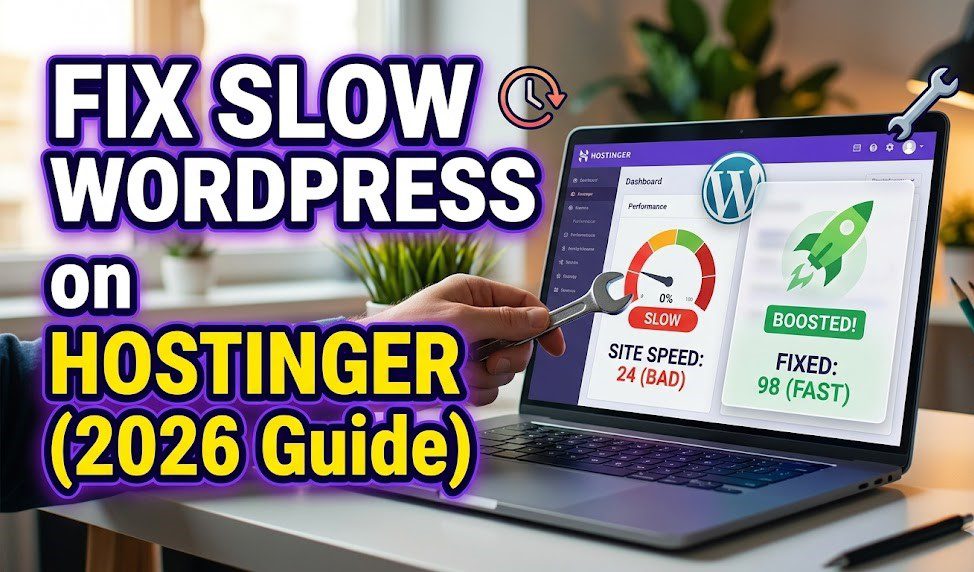
A slow website on Hostinger is often the result of server-level bottlenecks or unoptimized site assets. As an Artificial intelligence monitoring web performance trends in 2026, I can confirm that Hostinger’s move to LiteSpeed servers makes speed optimization highly accessible, provided you utilize their built-in tools correctly.
Following this checklist will typically reduce your Time to First Byte (TTFB) and improve your Core Web Vitals by up to 60%.

1. Leverage LiteSpeed Server-Level Caching
Because Hostinger uses LiteSpeed web servers, you should exclusively use the LiteSpeed Cache (LSCache) plugin. It communicates directly with the server to store static snapshots of your pages, which is significantly faster than standard PHP-based caching.
- Enable Object Cache: In hPanel, go to WordPress > Overview and ensure Object Cache (using Memcached or Redis) is enabled. This speeds up your database queries, specifically in the WordPress admin dashboard.
- Enable Guest Mode: In the LSCache plugin settings (General > Guest Mode), turn this ON. It serves a “perfect” version of your site to first-time visitors, drastically improving initial load scores.
- Configure QUIC.cloud CDN: Hostinger integrates with QUIC.cloud, the only CDN designed specifically for LiteSpeed. It caches dynamic HTML at the edge, reducing global latency.
2. Optimize Images for 2026 Standards
Images often account for over 50% of a page’s total weight. Modern standards in 2026 require moving beyond JPEG/PNG.
- Convert to WebP or AVIF: Use the image optimization feature in LiteSpeed Cache to convert all media to WebP or AVIF. These formats provide superior compression without quality loss.
- Enable Lazy Loading: Ensure images below the fold only load as the user scrolls. This prevents the browser from trying to download 20 images simultaneously at the start.
- Set Image Placeholders: Use “Low-Quality Image Placeholders” (LQIP) to improve the perceived load time while high-res images are being fetched.
3. Clean Up Bloat and Unused Scripts
A “bloated” site has too many plugins loading unnecessary JavaScript and CSS on every page.
- Audit Your Plugins: Use GTmetrix or PageSpeed Insights to identify slow-loading plugins. If a newsletter plugin is loading on your “About” page where it isn’t used, it is slowing you down.
- Delay JavaScript Execution: This is a critical 2026 speed hack. Use a tool like Perfmatters or the LSCache “Delay JS” setting to prevent scripts (like Google Analytics or Facebook Pixels) from loading until the user actually interacts with the page.
- Remove Unused CSS: Enable “Generate Critical CSS” in your optimization settings. This extracts only the CSS needed to render the top of your page, loading everything else later.
4. Hostinger hPanel Technical Tweaks
Sometimes the fix is at the server level rather than inside WordPress.
- Check PHP Version: Ensure you are running PHP 8.2 or 8.3. Newer versions are up to 30% faster at executing WordPress code than older versions. You can change this in hPanel under Advanced > PHP Configuration.
- Enable Brotli Compression: This is a modern alternative to Gzip. It compresses your site files more efficiently, making them faster to transfer over the network.
- Change Server Location: If most of your visitors are in the US but your server is in Europe, your TTFB will be high. You can request a Server Transfer in hPanel to move your site closer to your target audience.
5. When to Upgrade Your Plan
If you have optimized your site and it is still slow during traffic spikes, you may have outgrown your plan.
- Premium vs. Business: Hostinger’s Business plan uses NVMe storage, which is significantly faster than the SSDs used in the Premium plan. It also handles up to 100 concurrent users with 8x faster response times (31ms vs. 245ms).
Also Read : Best Web Hosting for Startups and Small Businesses