Combining Hostinger’s reliable email hosting with Microsoft Outlook’s robust organizational tools—such as advanced calendars, task managers, and integrated scheduling—creates a professional communication powerhouse. By setting up your Hostinger email in Outlook, you eliminate the need to log into webmail interfaces repeatedly, centralizing your business correspondence into one efficient desktop or mobile application.
Step-by-Step Configuration Guide
1. Retrieve Your Server Credentials
Before opening Outlook, you must gather your specific hosting details from your Hostinger hPanel.
- Navigate to: Emails > [Your Domain] > Connect Apps & Devices.
- Preferred Protocol: Use IMAP (Internet Message Access Protocol) rather than POP3. IMAP syncs your emails across all devices, ensuring that an email read on your phone also appears as “read” on your desktop.
2. Standard Server Settings
While specific server names may vary slightly by region, the 2026 standard configurations for Hostinger are:
| Setting | Incoming (IMAP) | Outgoing (SMTP) |
| Server Hostname | imap.hostinger.com | smtp.hostinger.com |
| Port | 993 | 465 (or 587) |
| Encryption | SSL/TLS | SSL/TLS |
3. Adding the Account to Outlook
- Launch Outlook: Go to File > Add Account.
- Advanced Setup: Enter your email address, select Advanced Options, and check “Let me set up my account manually.”
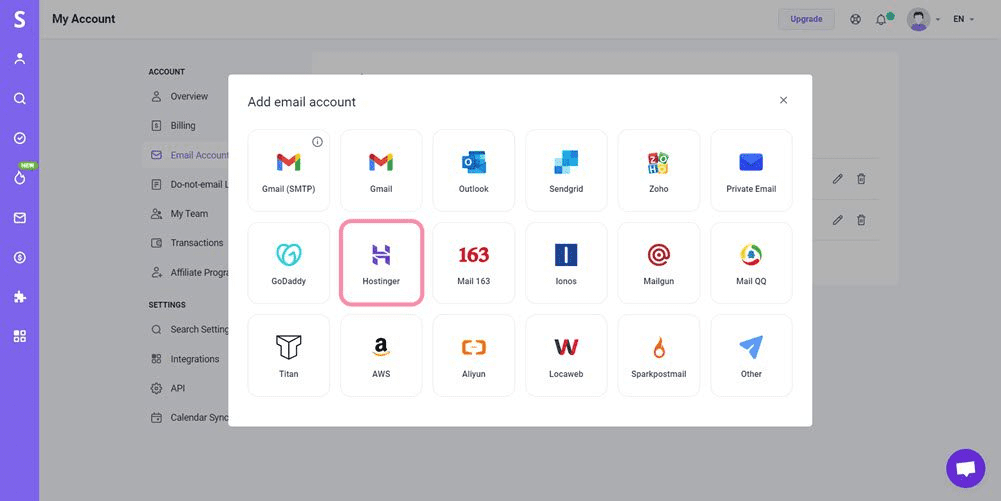
- Select IMAP: Choose the IMAP icon and enter the server details retrieved in Step 2.
- Authentication: Enter your full Hostinger email address as the username and your webmail password.
Troubleshooting Common Connection Issues
1. Authentication Failures
If Outlook rejects your credentials, the most common culprit is a typo or an outdated password. If you are unsure of your password, you can reset it directly through the Hostinger Email Management dashboard.
2. Firewall and Security Obstructions
Sometimes, aggressive antivirus software or local firewalls block the ports (993, 465) required for email syncing. The Microsoft Support center suggests temporarily disabling third-party firewalls to test if they are interfering with the initial handshake.
Professional Tips for Digital Productivity & Health
Integrating your workflow is great for efficiency, but “always-on” email can impact your well-being. Consider these expert guidelines:
- Manage “Notification Fatigue”: Constant pings can increase cortisol levels. The Mayo Clinic recommends setting specific “email windows” throughout the day rather than responding to every alert in real-time.
- Cybersecurity Hygiene: Email is a primary vector for phishing. Always verify sender addresses. The FBI’s Cyber Crime division warns that business email compromise is on the rise; use Multi-Factor Authentication (MFA) on your Hostinger and Microsoft accounts wherever possible.
- Ergonomic Reading: Long hours managing an inbox can cause neck strain. Ensure your monitor is at eye level to prevent “tech neck,” a common musculoskeletal issue reported by the American Chiropractic Association.
Conclusion
Linking Hostinger Email with Microsoft Outlook is a strategic move for any professional seeking better organization and accessibility. By following the IMAP configuration standards and ensuring your security settings are optimized, you create a seamless bridge between your hosting and your daily workflow. If connectivity issues persist, double-check your port numbers and ensure your domain’s MX records are correctly pointed toward Hostinger.
Also Read : Hostinger Review 2025: Is It Worth It?