Email is more than just a communication tool; it’s a vital artery for business operations, connecting teams, facilitating marketing strategies, and serving as a hub for customer interactions. Amidst this landscape, choosing the right email service is pivotal for efficiency and productivity.
Hostinger Email has emerged as a prominent player, offering a blend of reliability and advanced features. This guide delves into the intricacies of Hostinger Email setup along with a comprehensive view of its key features, troubleshooting tips, and how it compares to Neo.
What is Hostinger Email?
The features of your email service can significantly impact your daily workflow. Hostinger Email, known for its comprehensive suite of tools, caters to a variety of business needs.
Key Features of Hostinger Email
Here is a deep dive into some of the key features that make Hostinger a preferred choice for many:
- Intuitive User Interface: Hostinger boasts a user-friendly interface that simplifies email management. Whether you’re organizing your inbox, setting up filters, or scheduling emails, the design ensures a smooth user experience.
- Robust Security Measures: It offers strong security features like two-factor authentication (2FA), SSL/TLS encryption, and advanced spam protection.
- Custom Domain Usage: Hostinger allows the use of custom domains for your email addresses, lending a professional touch to your business communications (e.g., yourname@yourbusiness.com).
- Advanced Email Management: Features like autoresponders, email forwarding, and filter rules are available, allowing for automated and efficient email management.
- Mobile Accessibility: Hostinger Email is fully accessible on mobile devices, ensuring you can manage your emails anytime, anywhere.
Step-by-Step Guide to Hostinger Email Setup
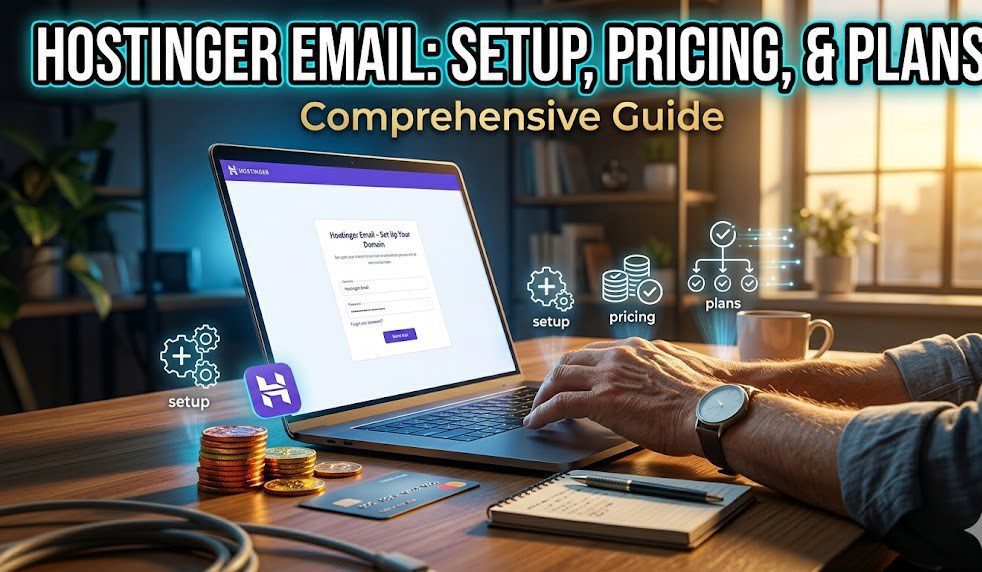
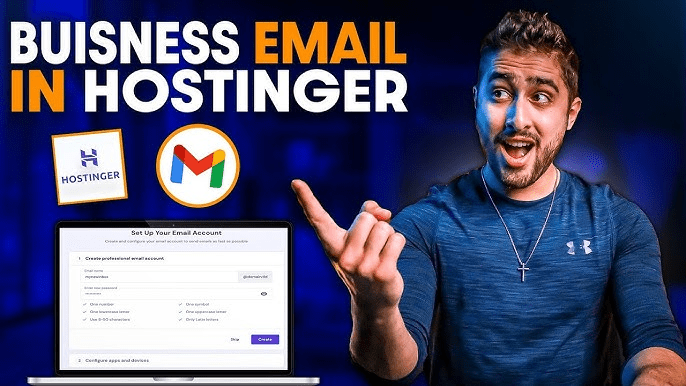
Here’s a step-by-step guide to help you through the Hostinger email setup process so you can start leveraging its features as quickly as possible.
- Visit Hostinger’s website: Start by navigating to Hostinger’s official website. Select ‘Business Email’ from the ‘Hosting’ menu.
- Choose a plan: Hostinger offers various plans tailored to different business needs. Click on ‘Get Started’ under the plan that fits your requirements.
- Domain name selection: Enter your existing domain name or choose a new one. Your domain name is crucial for branding and should be memorable and easy to spell.
- Account creation: Create a new email account by setting a username and password, then click ‘Create Account.’
- Custom domain setup: Access your Hostinger account dashboard, navigate to ‘Email Accounts’, and select ‘Add Email Account.’ Enter your desired email address and link it to your chosen domain.
Troubleshooting Common Issues with Hostinger Email
Even with the most user-friendly email services, occasional hiccups can occur. Being prepared to handle common issues can save time and reduce frustration.
- Difficulty in sending or receiving emails: Incorrect SMTP (for sending) and POP/IMAP (for receiving) settings can disrupt email flow. Verify these email server settings in your email client or Hostinger’s control panel.
- Login issues: Sometimes, browser cache issues can interfere with login. Try clearing your cache or accessing your account from a different browser or device.
- Configuring email on third-party clients: Ensure that you are using the correct incoming and outgoing server settings provided by Hostinger. They provide detailed guides for configuring email on various clients like Outlook, Thunderbird, and mobile devices.
- Attachments not uploading or downloading: Ensure the attachment doesn’t exceed Hostinger’s size limits. Some file formats might also be blocked for security reasons.
Introduction to Neo
As we explore the landscape of email services, it’s essential to consider emerging players like Neo. Known for its innovative approach, Neo is designed to cater to the evolving needs of modern businesses.
Key Features of Neo
- Last-minute corrections: The ‘Undo Send’ feature is a lifesaver, allowing users to retract an email shortly after sending it. It is perfect for fixing typos.
- Engagement tracking: With the read receipts feature, users receive notifications as soon as their emails are opened, offering insights into the engagement level of recipients.
- Priority inbox: This feature prioritizes important emails, allowing users to attend to critical messages first.
- Strategic scheduling: The ‘Send Later’ feature enables users to schedule emails to be sent at a time when they’re most likely to be read.

Comparative Analysis: Hostinger vs. Neo
| Feature | Hostinger | Neo |
| Storage | 10GB / 50GB | 10GB / 50GB |
| Email Services | Webmail, IMAP, POP3, SMTP | Webmail, IMAP, POP3, SMTP |
| Domain Registration | Yes | Yes |
| Hosting Services | Web hosting, VPS, Dedicated servers | Email Hosting, Free one-page website |
| Security Features | SSL, anti-spam, and anti-virus protection | SSL/TLS encryption, 2FA, spam filtering |
Pricing Comparison
Hostinger offers a variety of hosting services, including email hosting. Hostinger Email Pricing plans provide a cost-effective solution for personal or business email needs. Neo offers highly competitive pricing aimed directly at small businesses and solopreneurs.
- Hostinger Business Starter: $1.59/month per mailbox
- Hostinger Enterprise Email: $3.99/month per mailbox
- Neo Business Starter: $1.75/month (one user)
- Neo Business Plus: $3.49/month (one user)
Wrapping Up
As we conclude our comprehensive exploration of Hostinger and its comparison with Neo, it’s clear that both services offer distinct advantages tailored to different business needs and preferences.
When choosing between Hostinger and Neo, consider the specific needs of your business. Whether you choose Hostinger for its simplicity and established web-hosting integration, or lean towards Neo for its advanced email engagement features and customization, both services offer reliable and efficient email management solutions.
Also Read : Beginner’s Guide to WP Engine: Is This Managed WordPress Host Right for You?