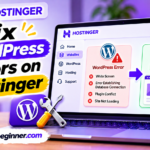
If your WordPress website is hosted on Hostinger, you need to access its admin dashboard whenever you want to publish posts, edit pages, change themes, install plugins, or manage website settings.
Fortunately, you do not have to remember a complicated address. You can log in directly through your website's WordPress login URL or use the WP Admin shortcut in your Hostinger account.
This guide explains Hostinger WordPress login in three simple ways, including what to do if you forget your password or cannot open the login page.
https://yourdomain.com/wp-admin. Replace yourdomain.com with your actual website domain. You can also open your website in Hostinger and select the WP Admin or Edit Website shortcut if it is available.
Table of Contents
1. Hostinger Login vs WordPress Login: What's the Difference?
One common source of confusion for beginners is that Hostinger and WordPress have separate login systems. They provide access to different dashboards.
Hostinger Account
Used to manage your hosting subscription, domains, billing, email services, website settings, databases, and other hosting features.
Login: Hostinger account credentials.
WordPress Admin
Used to manage website content, blog posts, pages, themes, plugins, menus, users, and WordPress settings.
Login: WordPress administrator credentials.
| Feature | Hostinger Dashboard | WordPress Admin |
|---|---|---|
| Main purpose | Manage hosting services | Manage website content |
| Login details | Hostinger account | WordPress username or email and password |
| Domain settings | Yes, where supported | Limited website URL settings |
| Publish blog posts | No, not directly | Yes |
| Install WordPress plugins | Some hosting tools may help manage them | Yes |
| Manage hosting subscription | Yes | No |
If you want to edit your website or publish an article, you generally need WordPress Admin. If you want to manage your hosting plan or domain, use your Hostinger account.
2. How to Find Your Hostinger WordPress Login URL
Every standard WordPress installation has a login page. The most common login address uses your domain followed by /wp-admin.
For example, if your website address is example.com, your login URL will usually be:
Other default WordPress login paths may also work:
https://yourdomain.com/wp-login.phphttps://yourdomain.com/adminhttps://yourdomain.com/loginhttps://yourdomain.com/wp-login
The alternatives may not work on every website. A security plugin or custom configuration can change the default login URL.
What if WordPress is installed on a subdomain?
If your WordPress website is installed on a subdomain, include that subdomain in the login address.
https://blog.yourdomain.com/wp-adminIf WordPress is installed in a subdirectory, the address may look like this:
https://yourdomain.com/blog/wp-admin3. Method 1: Log In to WordPress Using Your Website URL
This is the simplest method if you already know your WordPress administrator username or email address and password.
1 Open Your Website Login Page
Open a browser and enter your website's WordPress login URL.
https://yourdomain.com/wp-adminReplace the example domain with your own website address.
2 Enter Your Username or Email
The WordPress login page asks for your username or email address. Enter the administrator credentials created when WordPress was installed.
3 Enter Your Password
Type your WordPress password into the password field. Check that Caps Lock is not enabled and that you are using the correct password.
4 Click Log In
Click the Log In button. If your credentials are correct, WordPress will open the administration dashboard.
5 Save the Login Page
After confirming that the URL works, bookmark it in your browser. Avoid saving your password on a shared or public computer.
4. Method 2: Log In Through the Hostinger Dashboard
Hostinger also provides a shortcut for opening your WordPress administration area. This is useful if you do not remember the direct login URL.
1 Sign In to Hostinger
Visit the Hostinger website and click Log in. Enter your Hostinger account email and password, or use your configured social login method.
If two-factor authentication is enabled, complete the verification step.
2 Open the Websites Section
After signing in, open Websites from the left sidebar. Find the WordPress website you want to access.
3 Open the Website Dashboard
Click Dashboard or Manage site next to your website. The exact label can vary with the current Hostinger interface.
4 Find the WordPress Shortcut
Look for the WordPress Overview or WordPress management section. Open the dashboard area and find the Edit Website or WP Admin shortcut.
5 Open WordPress Admin
Click the available shortcut. Hostinger may open the WordPress administration area directly without asking you to enter your WordPress password again.
5. How to Reset a Forgotten WordPress Password on Hostinger
If you cannot remember your WordPress password, you do not need to reinstall WordPress. Start with the built-in password recovery option.
Method A: Use the Lost Your Password option
1 Open the WordPress Login Page
Visit your WordPress login address:
https://yourdomain.com/wp-admin2 Select Lost Your Password?
On the login screen, click the Lost your password? link below the login form.
3 Enter Your Username or Email
Enter the username or email address associated with your WordPress administrator account and submit the recovery request.
4 Check Your Email
Open your inbox and look for the password reset message. Also check the spam or junk folder if it does not arrive.
5 Create a New Password
Follow the reset link and create a strong, unique password. Save it in a trusted password manager.
Method B: Use Hostinger's available WordPress management tools
If the email recovery method does not work, check whether your Hostinger dashboard provides WordPress management options. Depending on your plan and interface, WordPress Overview may provide shortcuts and tools for managing the installation.
For advanced recovery, Hostinger documents a WP-CLI method for supported hosting plans. This requires SSH access and familiarity with command-line tools, so it is not recommended as the first option for beginners.
6. What Can You Do After Logging In to WordPress?
Once you enter WordPress Admin, you will see the main dashboard. It provides access to the tools used to manage your website.
| Dashboard Menu | What It Does |
|---|---|
| Posts | Create, edit, and publish blog articles. |
| Media | Upload and manage images, documents, and other media. |
| Pages | Create static pages such as About, Contact, and Services. |
| Comments | Review and manage visitor comments. |
| Appearance | Manage themes, menus, and design options. |
| Plugins | Install, activate, update, and manage plugins. |
| Users | Manage website accounts and their roles. |
| Settings | Configure general website and WordPress settings. |
For example, if you want to publish a new blog article, open Posts → Add New Post. If you want to edit your website's homepage, open the relevant page or use the editor associated with your active theme or page builder.
7. Common Hostinger WordPress Login Problems and Fixes
Sometimes the login page does not open or WordPress rejects the login details. Use the troubleshooting steps below to identify the problem before changing website files.
Problem 1: WordPress login page is not opening
If /wp-admin displays a 404 error or does not load, check the following:
- Confirm that WordPress is installed on the domain you are using.
- Check whether your domain points to the correct Hostinger hosting service.
- Verify that you are using the correct subdomain or installation directory.
- Check whether a security plugin has changed the default login URL.
- Try opening the login page in a private browser window.
Problem 2: Incorrect username or password
If WordPress displays an incorrect password message, check that you are using the WordPress credentials rather than your Hostinger account credentials.
Use the Lost your password? option if necessary. Also check whether your browser is automatically filling an old password.
Problem 3: 403 Forbidden error
A 403 error means access to the requested page is being denied. Possible causes include security rules, IP restrictions, plugin conflicts, or file configuration problems.
- Try accessing the website from another browser or network.
- Check whether a security plugin is restricting the login page.
- Verify the domain's DNS configuration.
- Contact Hostinger support if you suspect an IP or server-side restriction.
Problem 4: Too many redirects
A login redirect loop can happen when website URL settings, HTTPS configuration, cookies, or plugins conflict.
- Clear browser cookies and cached data for your website.
- Check whether the website's WordPress and Site Address URLs are configured correctly.
- Verify that SSL is active if your website uses HTTPS.
- Review recently installed security or redirect plugins.
Problem 5: Cookies error
WordPress may show a message that cookies are blocked or unsupported. First, make sure your browser allows cookies for the website. If the problem continues, check your WordPress configuration or contact support before editing configuration files.
Problem 6: Login page asks for an additional password
Some websites have an additional layer of password protection on the wp-admin directory. This is separate from the normal WordPress login form.
If you manage the website, review the password protection settings in your hosting dashboard or the relevant .htaccess configuration. Do not remove security protection unless you understand why it was enabled.
Problem 7: Login page is blocked by a plugin
Security and login plugins can change the login URL, apply CAPTCHA checks, or restrict access. If a plugin is responsible, use Hostinger's WordPress management tools or File Manager to investigate it.
Disabling plugins by renaming their folders is an advanced recovery step. Back up your website first, and avoid changing multiple files at once.
.htaccess or wp-config.php if simpler checks do not solve the problem.
8. How to Secure Your Hostinger WordPress Login
Your WordPress administrator account can control important parts of your website. Protecting it is essential, especially if you manage business content or multiple websites.
Use a Strong, Unique Password
Do not reuse your email, Hostinger, or other account passwords. Use a password manager to create and store a unique password.
Enable Two-Factor Authentication
Enable two-factor authentication for your Hostinger account and use an appropriate WordPress security solution if your website requires additional login protection.
Avoid Generic Administrator Usernames
Choose a username that is not easy to guess. Do not assume that changing the username alone makes a website secure; use strong passwords and other security measures too.
Limit Administrator Access
Give other users only the permissions required for their work. Avoid sharing one administrator account among multiple people.
Keep WordPress Updated
Update WordPress, themes, and plugins regularly. Remove unused themes and plugins that you no longer need.
Keep Backups
Review your hosting backup options and maintain a recovery plan. Backups are particularly important before changing login plugins or security settings.
9. Hostinger WordPress Login Checklist
If you want to access your website quickly, keep these details ready:
- Your correct website domain or subdomain.
- Your WordPress login URL.
- Your WordPress administrator username or email.
- Your WordPress password or access to its recovery email.
- Access to your Hostinger account if you need the WP Admin shortcut.
- A secure browser and updated password manager.
10. Frequently Asked Questions
What is the Hostinger WordPress login URL?
The standard WordPress login URL is your domain followed by /wp-admin. For example, https://example.com/wp-admin. Your website may use a custom login URL if a plugin or configuration has changed it.
How do I log in to WordPress from Hostinger?
Sign in to Hostinger, open Websites, select your WordPress website, and open its dashboard. Find the WordPress Overview or WP Admin shortcut and select Edit Website or the available login option.
Are Hostinger and WordPress passwords the same?
They are separate login credentials. Your Hostinger password accesses your hosting account, while your WordPress password accesses your website's administration area. They are only the same if you deliberately set them that way.
Why is my WordPress login page not working?
Possible causes include an incorrect URL, DNS configuration problems, a plugin that changes the login path, security restrictions, or a WordPress configuration issue. Check the URL and domain first, then investigate plugins and hosting settings.
How can I log in if I forget my WordPress password?
Open your WordPress login page and select Lost your password? Enter your administrator username or email and follow the reset link sent to your registered email address.
Can I access WordPress without entering my password every time?
Hostinger may provide an Edit Website or WP Admin shortcut through its dashboard that opens the WordPress administration area directly. This depends on the available account and website management features.
Can I change my WordPress login URL?
Yes. Some WordPress security plugins allow you to change the default login URL. If you do this, save the new address securely and make sure you understand how to recover access if the plugin stops working.
What is the difference between WP Admin and hPanel?
WP Admin is the WordPress website management dashboard. Hostinger's dashboard, formerly commonly called hPanel, manages hosting services, domains, billing, files, databases, and other hosting features.
Can I log in to WordPress from my mobile phone?
Yes. Open your website's WordPress login URL in a mobile browser and enter your credentials. You can also use the available Hostinger dashboard shortcut. Make sure you use a secure device and network.
Access Your WordPress Website Easily
You can access WordPress through your website's login URL or the WP Admin shortcut in Hostinger. Save your correct login address, keep your administrator credentials secure, and use the password recovery process if you lose access.
Read Hostinger's WordPress Login GuideEditorial note: Hostinger's dashboard labels and WordPress management tools may change. Some shortcuts and troubleshooting options depend on the hosting plan, WordPress installation, and website configuration. Always back up your website before making advanced changes to plugins or configuration files.